
Transcripts · 7 min read
How to Get a YouTube Transcript (the Right Way)
A transcript is just the words of a video written down. Getting one should be a two-second job — yet most people end up screenshotting captions or trusting a random tool that mangles the text. Here is how transcripts actually work on YouTube, and the fastest reliable way to get one.
What a YouTube transcript really is
Every public YouTube video can carry a caption track. Caption tracks come in two flavours. Manual (uploaded) captions are written by the creator, timed precisely, and usually spell names correctly. Automatic captions are generated by YouTube’s speech recognition, exist on the overwhelming majority of public videos, and label everything from music to laughter.
A transcript tool does not listen to the audio and guess. It reads the caption track the video already has — which is why transcripts are instant, and why a video with no caption track of any kind genuinely cannot be transcribed without separate speech-to-text.
The three paths, ranked
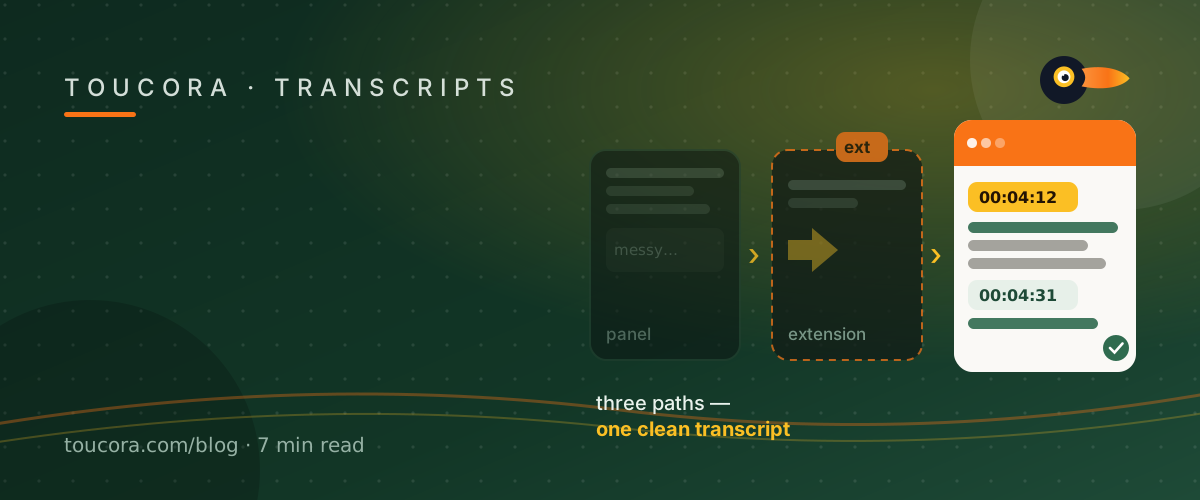
YouTube’s own transcript panel is free but awkward: it only shows one language, the formatting is messy, the panel resets when you navigate, and copying gives you stray punctuation without timestamps you can click.
A browser extension can add a copy button, but extensions vary by browser and often break when YouTube changes its layout. They also cannot export subtitle formats like SRT or VTT.
A web tool such as Toucora reads the same caption track server-side. You paste a link and get a clean transcript with clickable timestamps, in a reader you can search, plus exports for whatever you do next. Nothing to install, and manual captions are preferred over automatic ones when both exist.
Handling videos with no subtitles
“No subtitles” usually does not mean “no transcript”. Even when a creator never uploaded captions, YouTube almost always has an automatic track. A good tool falls back to it and tells you it did, so you know the quality you are reading.
The rare exception is a video with no caption track at all — some music-only uploads, or heavily restricted videos. A trustworthy tool says so plainly instead of inventing text.
A workflow that saves the most time
Paste the link. Skim the transcript in the reader. Search for the phrase you remember and jump the player to that second. Copy the one line you need with its timestamp, or export the whole thing.
Because extraction happens once and everything else in the workspace — summary, quotes, translation — reuses the same transcript, you never pay the cost twice.
Frequently asked
Is a YouTube transcript free?
Yes. A video’s caption track is public data, and reading it with a tool like Toucora is free to try with no signup.
Does it work when a video has no subtitles?
Usually. YouTube auto-generates captions on most public videos, and a good tool falls back to them and labels the source.
Can I get timestamps?
Yes — every line can carry a timestamp that links to the exact second, and exports keep the timing.